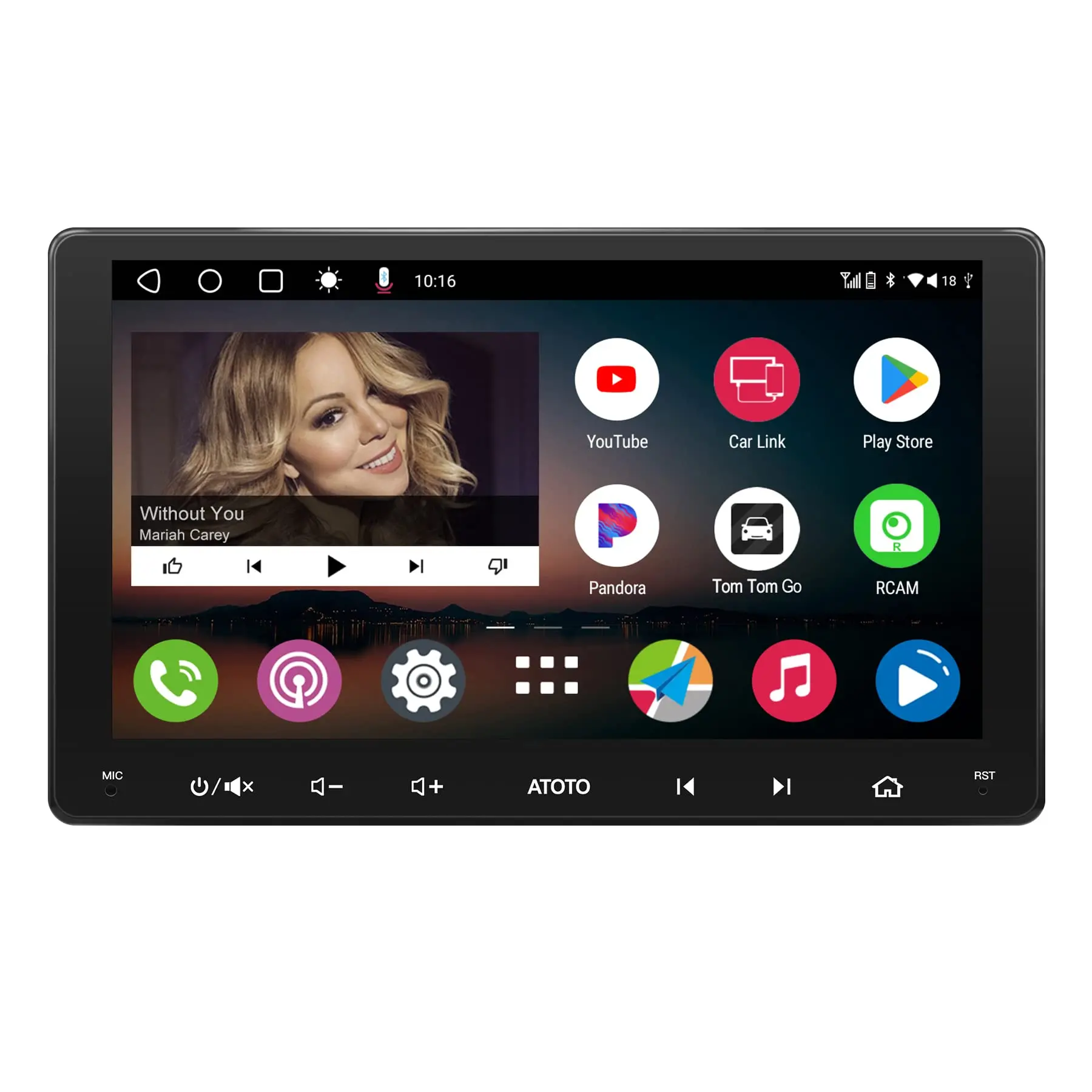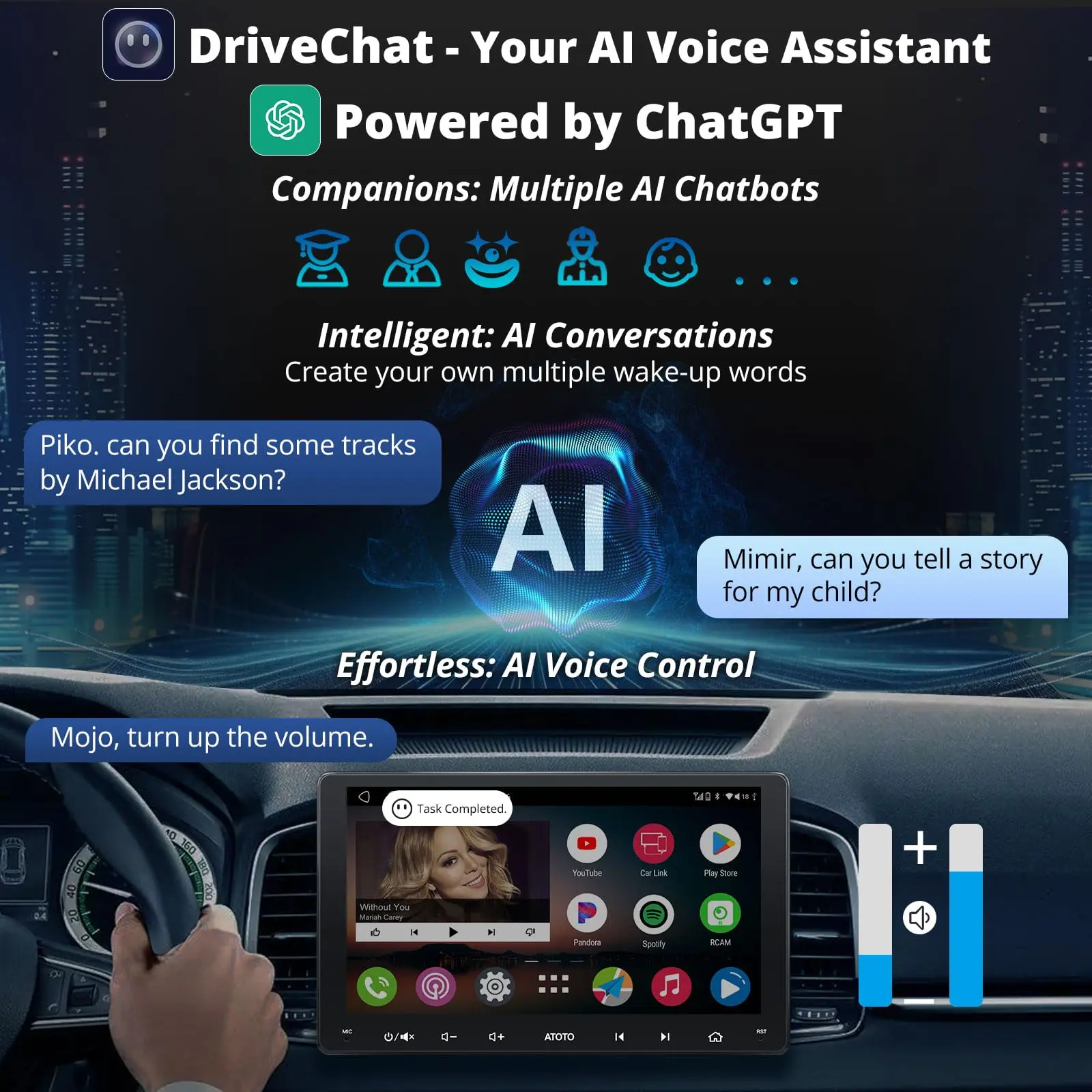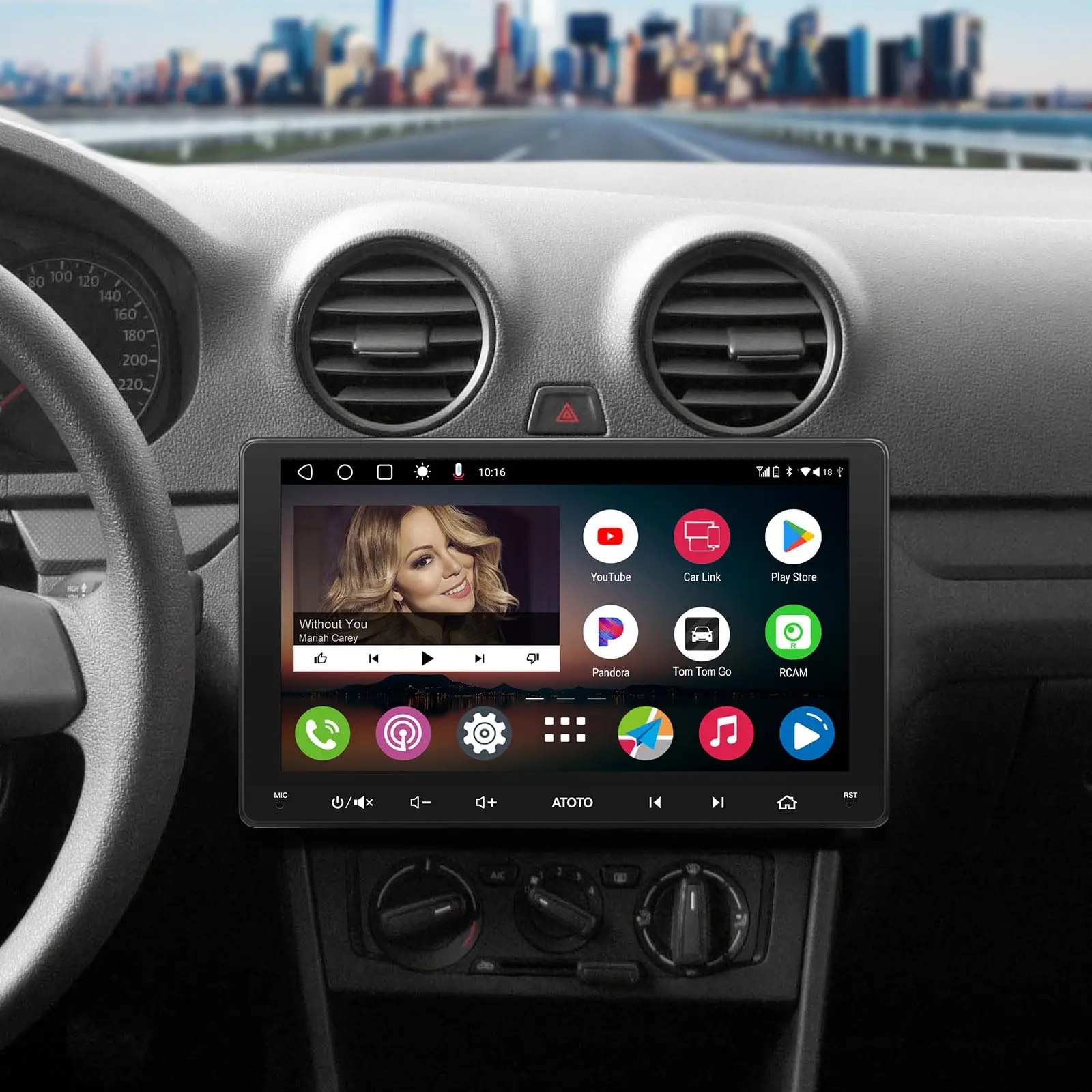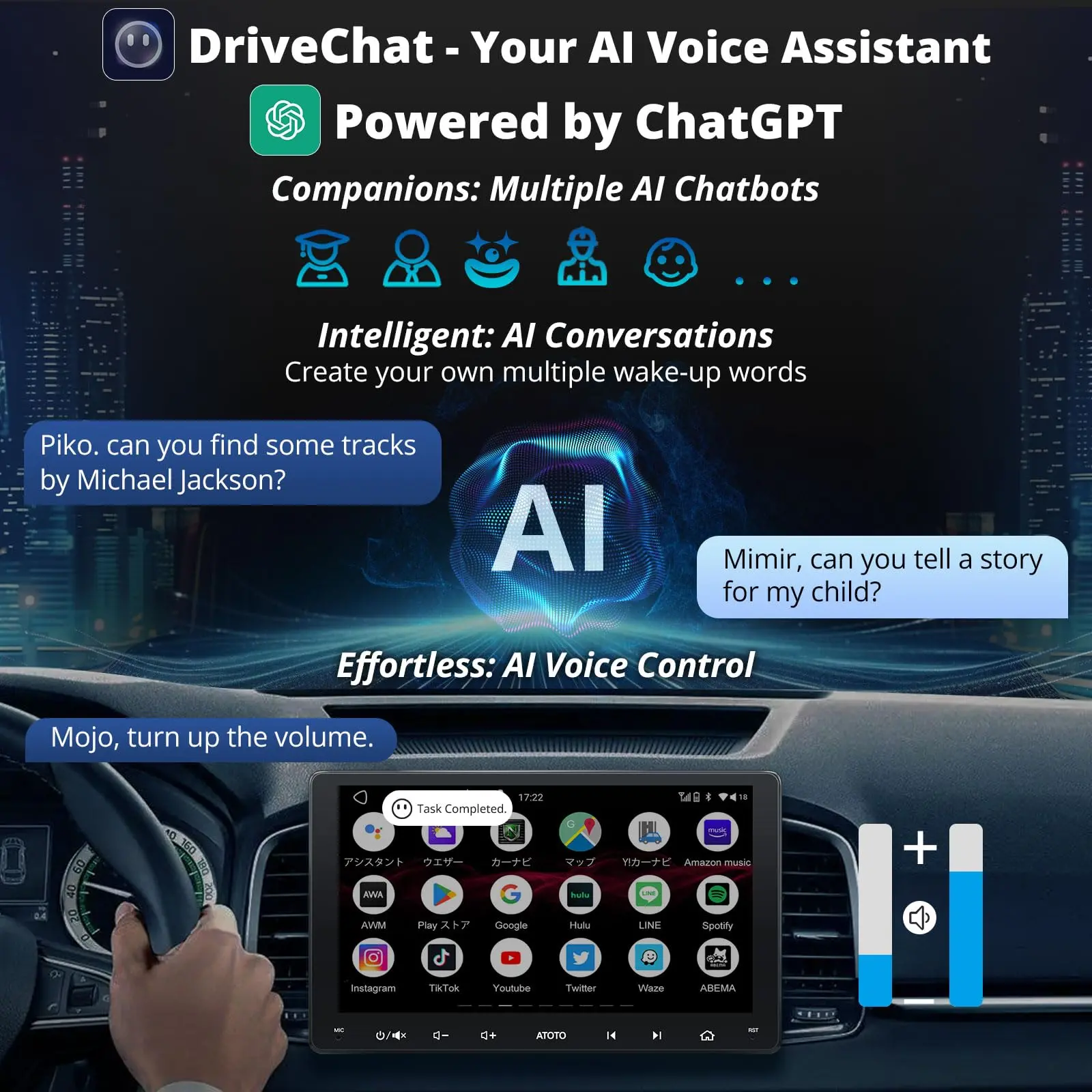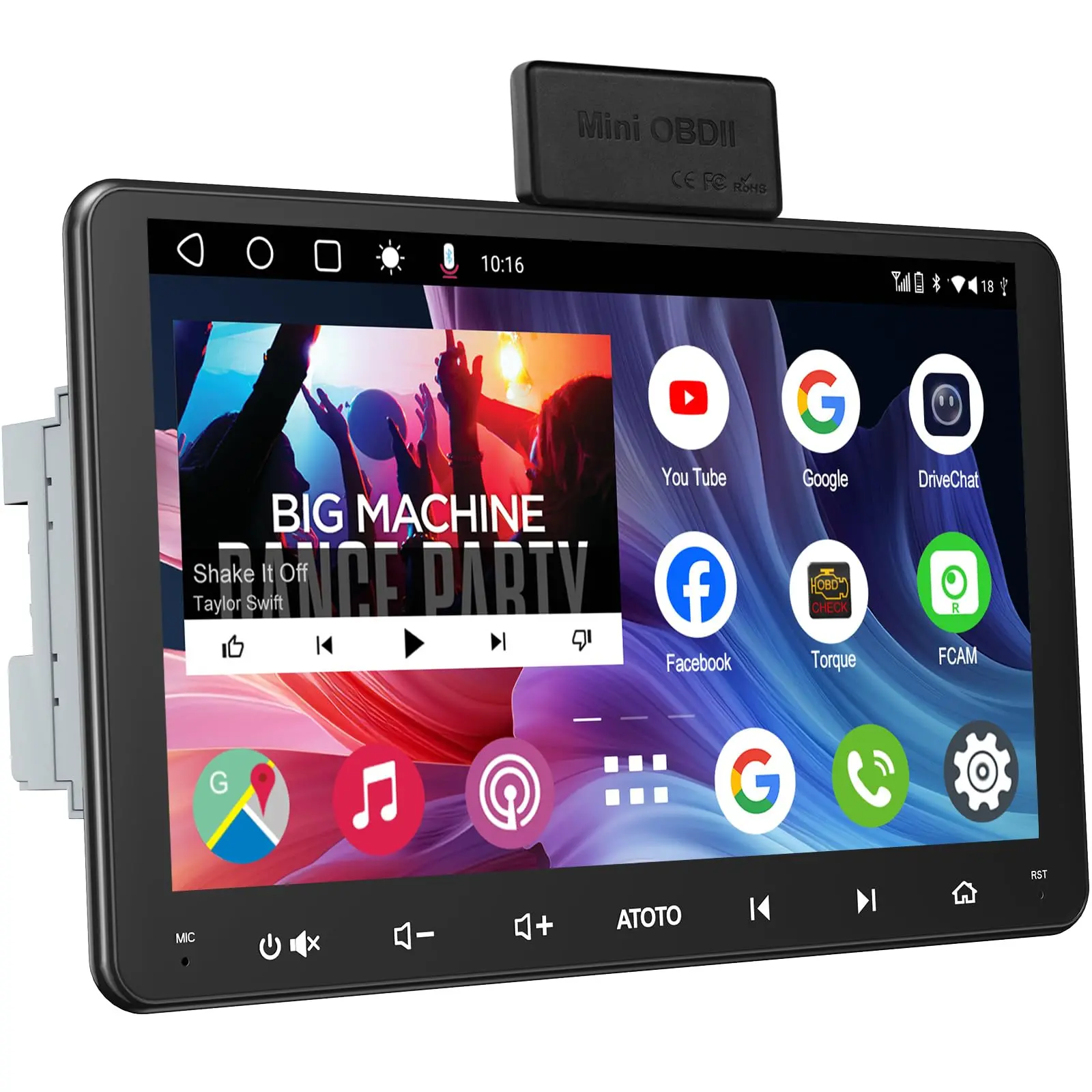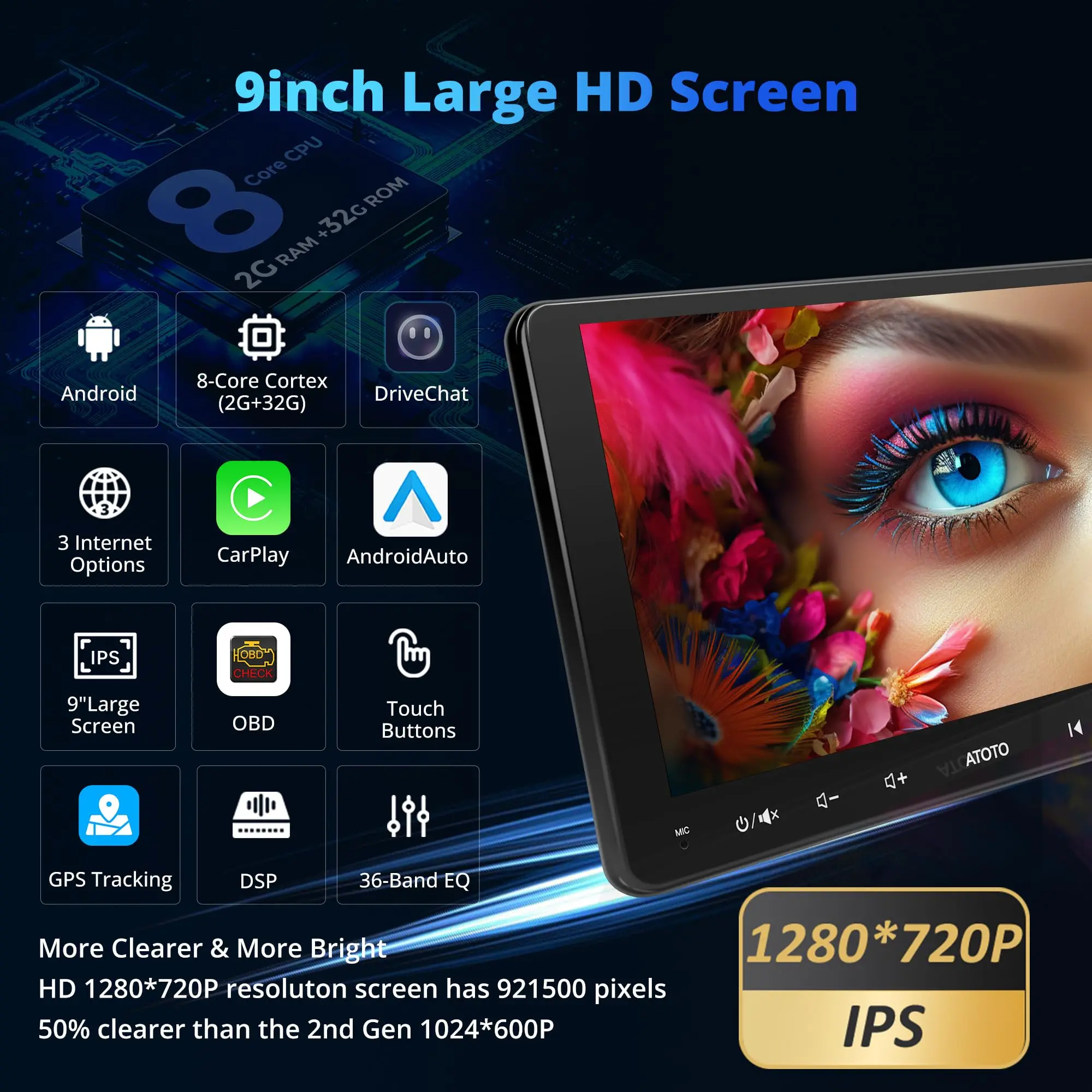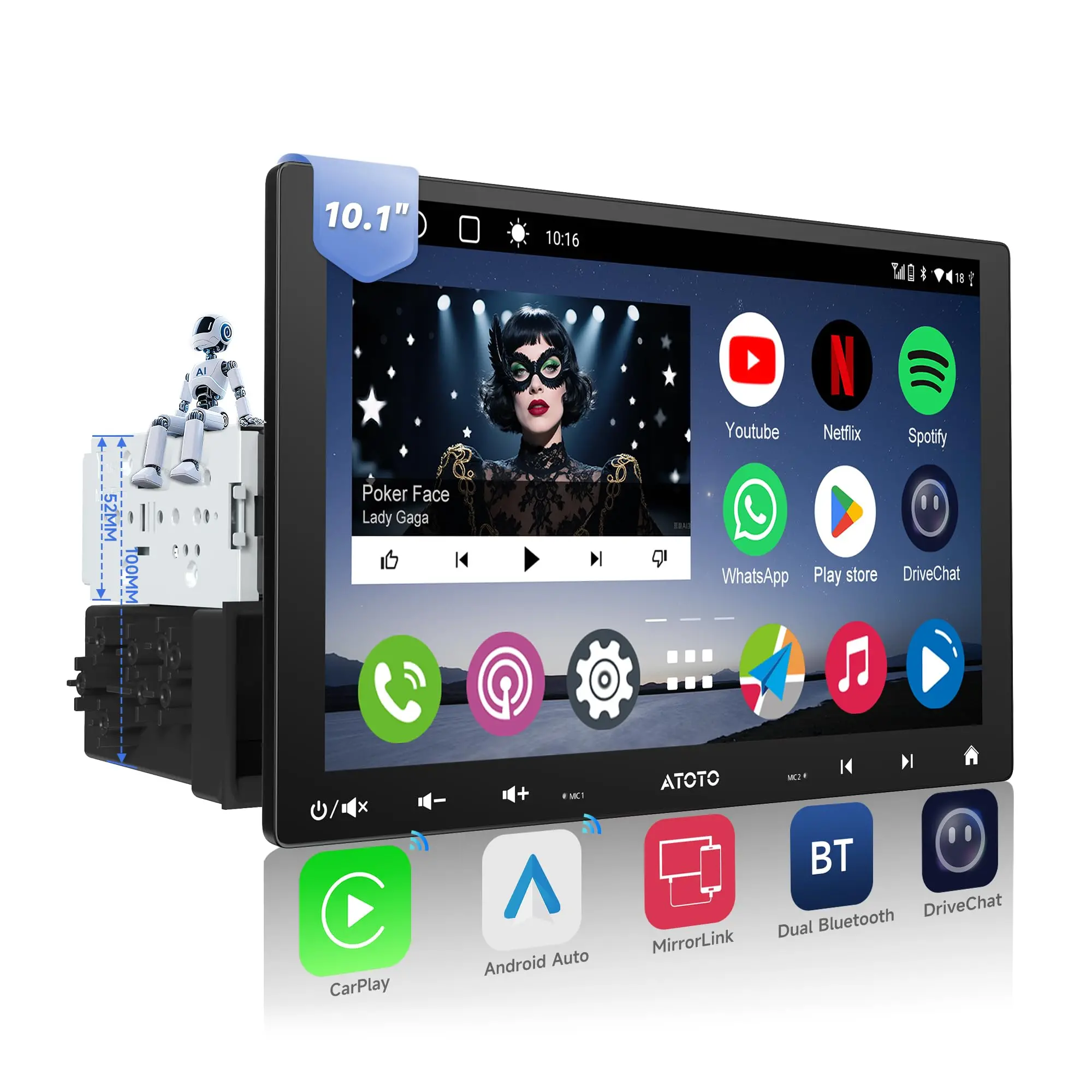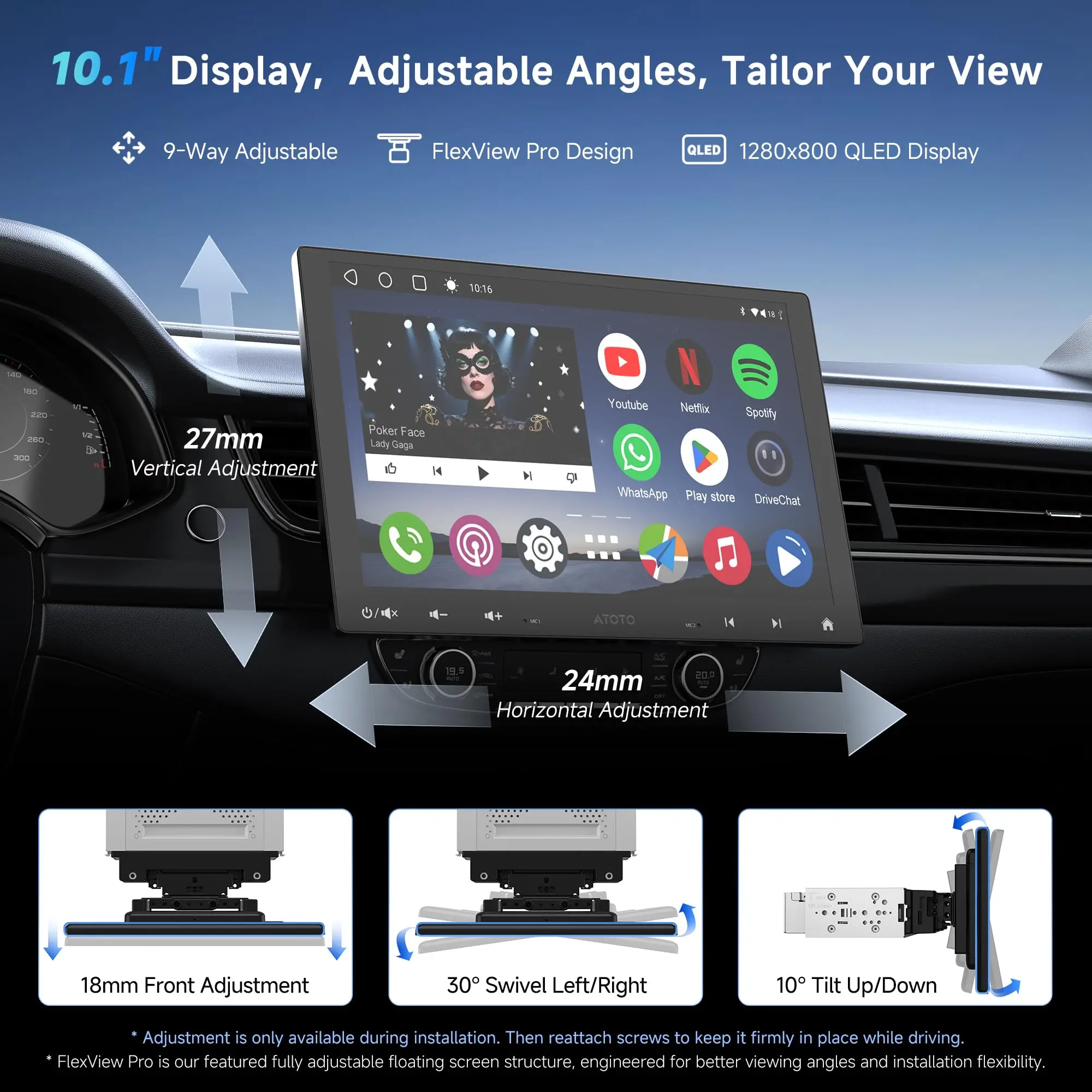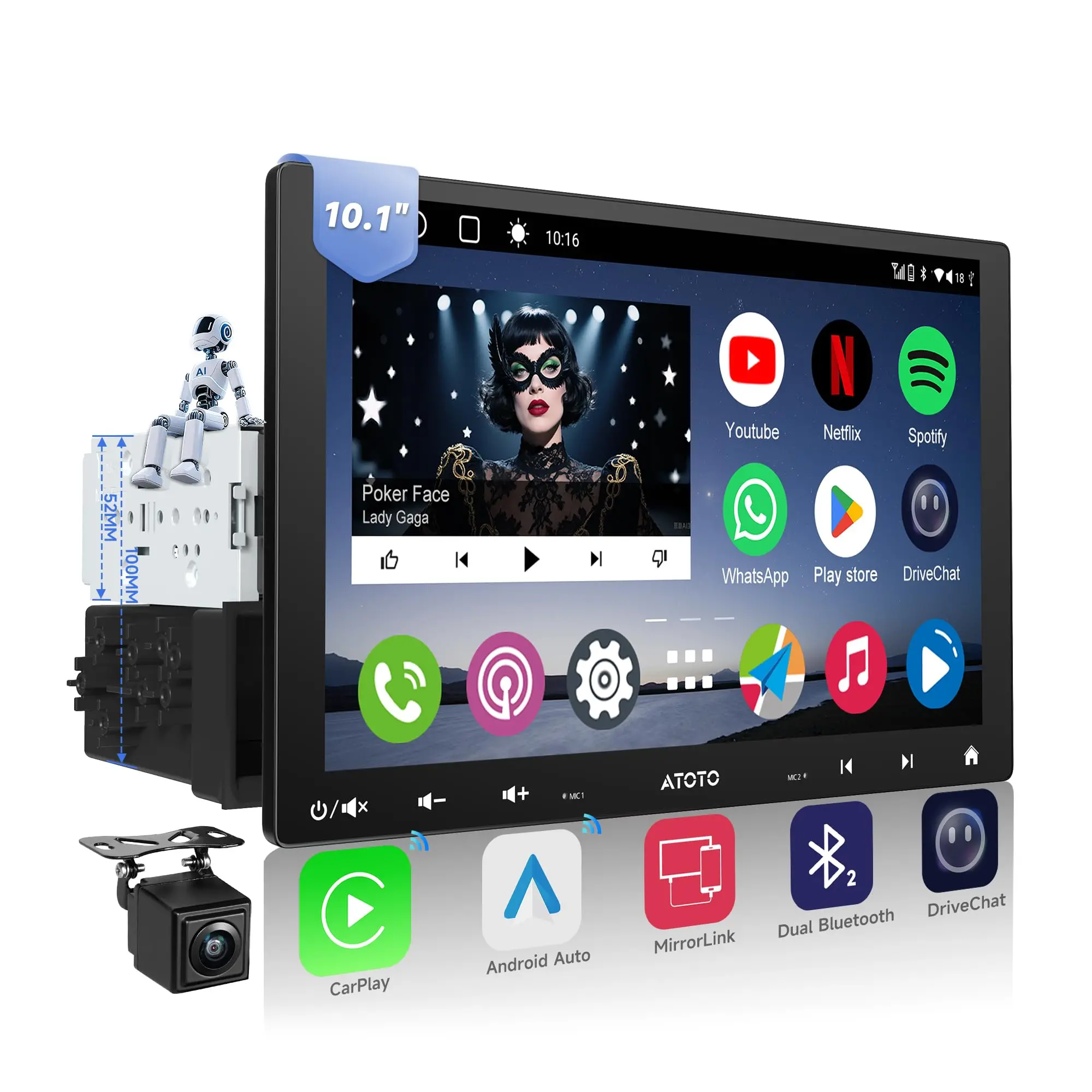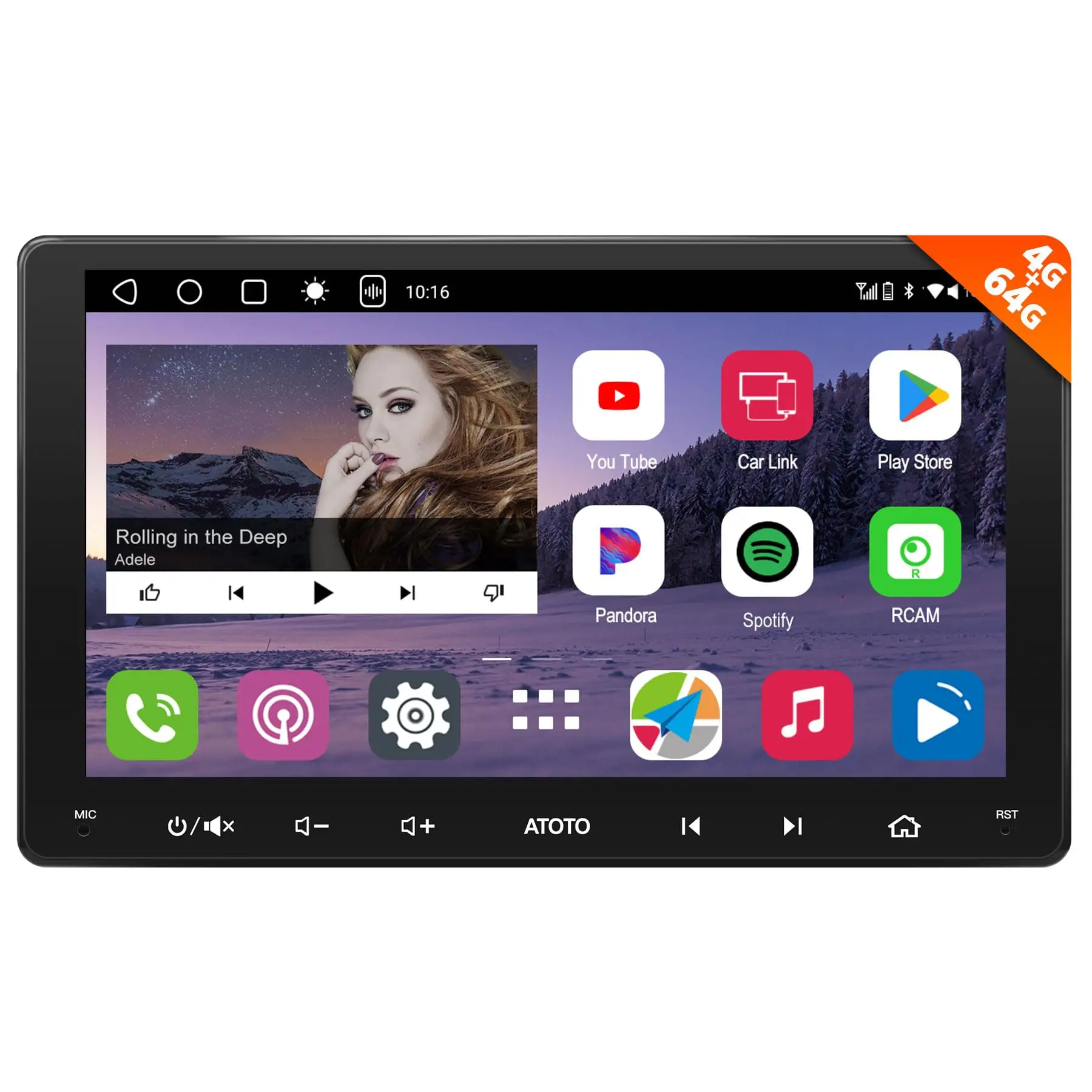
ATOTO A6G209PL 9" Double Din Car Stereo, QLED Display, 8-Core Android, 4G+64G, 4G LTE WiFi/BT/USB Tethering, Wireless CarPlay & Android Auto, MirrorLink, Dual Bluetooth, DSP, FM Radio, In-Dash Navigation


Online/Offline Maps
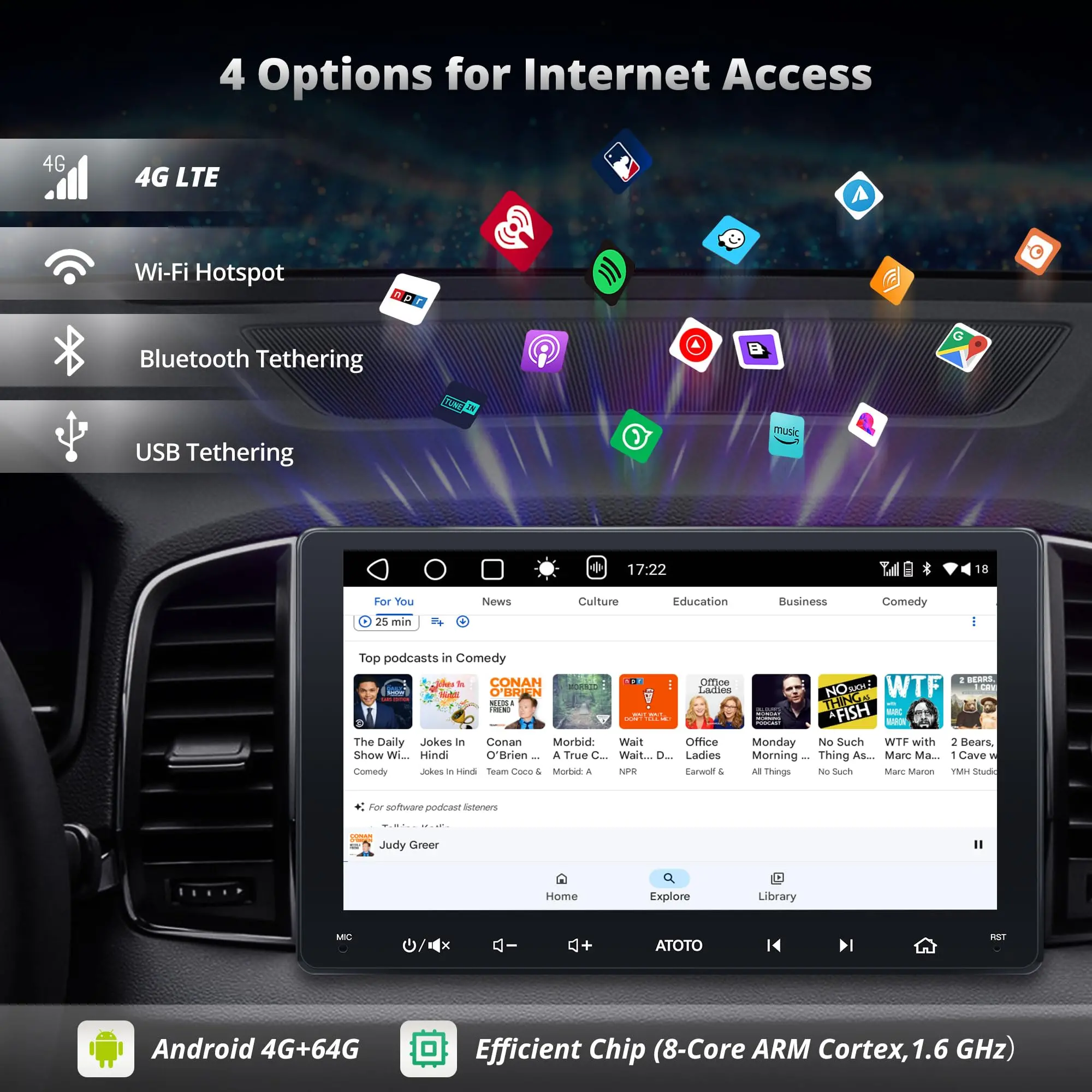
With online maps, you can enjoy real-time traffic announcements during rush hours and choose the route to save commute time. In the area where cellular data is hard to access, our robust built-in GPS chip enables offline navigation using downloaded maps.

Real-time GPS Tracking with TrackHU APP
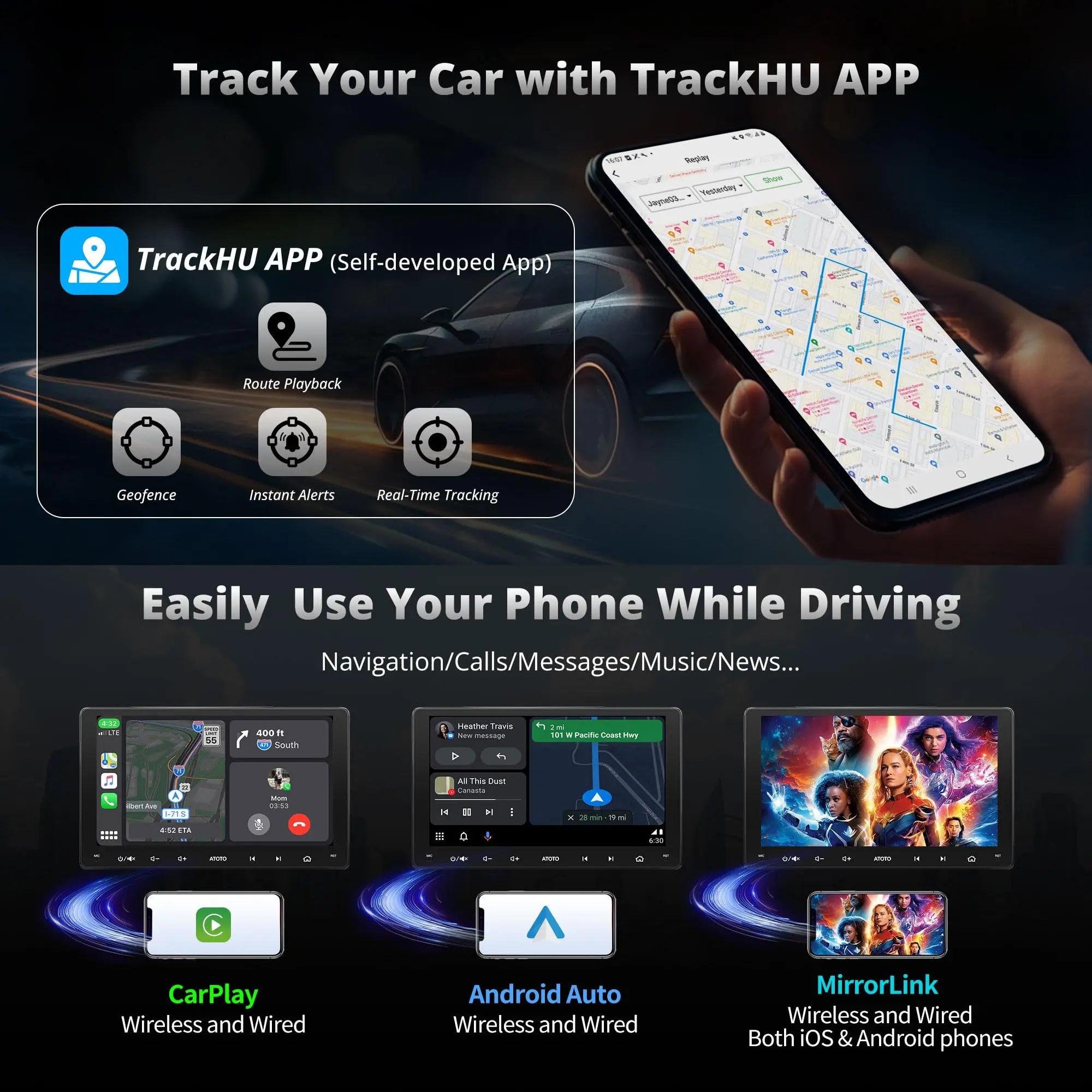
Track your car effortlessly with the TrackHU app on A6 PL. Whether your car is borrowed, or out for deliveries, TrackHU makes the real-time updates when GPS and network are enabled. Plus, you can delete your tracking data or deactivate your account anytime—you're in complete manage.

Built-in Amplifier & 36 Band EQ DSP
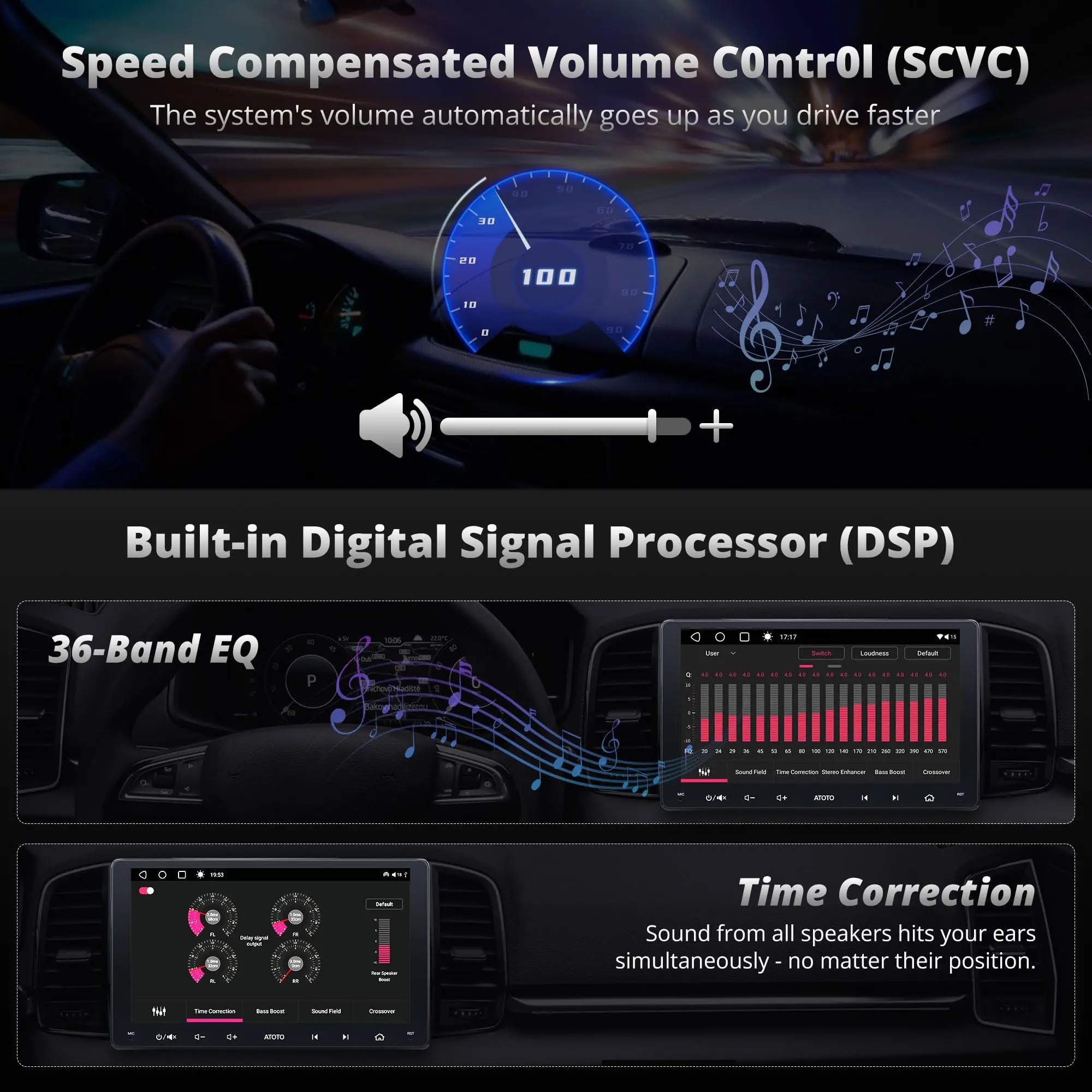
With a powerful Digital Signal Processor(DSP), which takes the audio experience in the car to a whole new level by offering features like Time Alignment, and 36-Band EQ, Adjustable Crossover. Plus, Speed Compensated Volume manage(SCVC) counteracts external noise.

Dual Zone Video Out
The A6 PL Android Double Din Car Stereo's Dual Zone Video Out feature allows independent video playback on multiple screens, so the driver can navigate with A6 PL while passengers enjoy entertainment. Its USB interface supports up to 2TB storage, perfect for long trips.


.
With a screen lock feature, whenever your car stereo is not within your manage, such as during valet parking or when your car is operated by others, your online profiles stay protected. But what sets A6 PL apart is its innovative 'Unlock with BT' function. The moment your phone's BT pairs with the A6 PL, the screen unlocks automatically. The initiative to lock or unlock A6 PL is in your steps - just walk in or out of the BT range.

.
Accelerating the boot time of an Android system from 25 seconds to a mere 2 seconds is challenging. However, it's essential to preserve the car's battery life and ensuring quick startup upon every ignition. This feature has been rigorously evaluated in our products (A6 & S8) to demonstrate its reliability, consistently showing positive results. The internal clock will keep track of time and A6 PF automatically shuts off if the car remains parked after 7 days to save car battery.

.
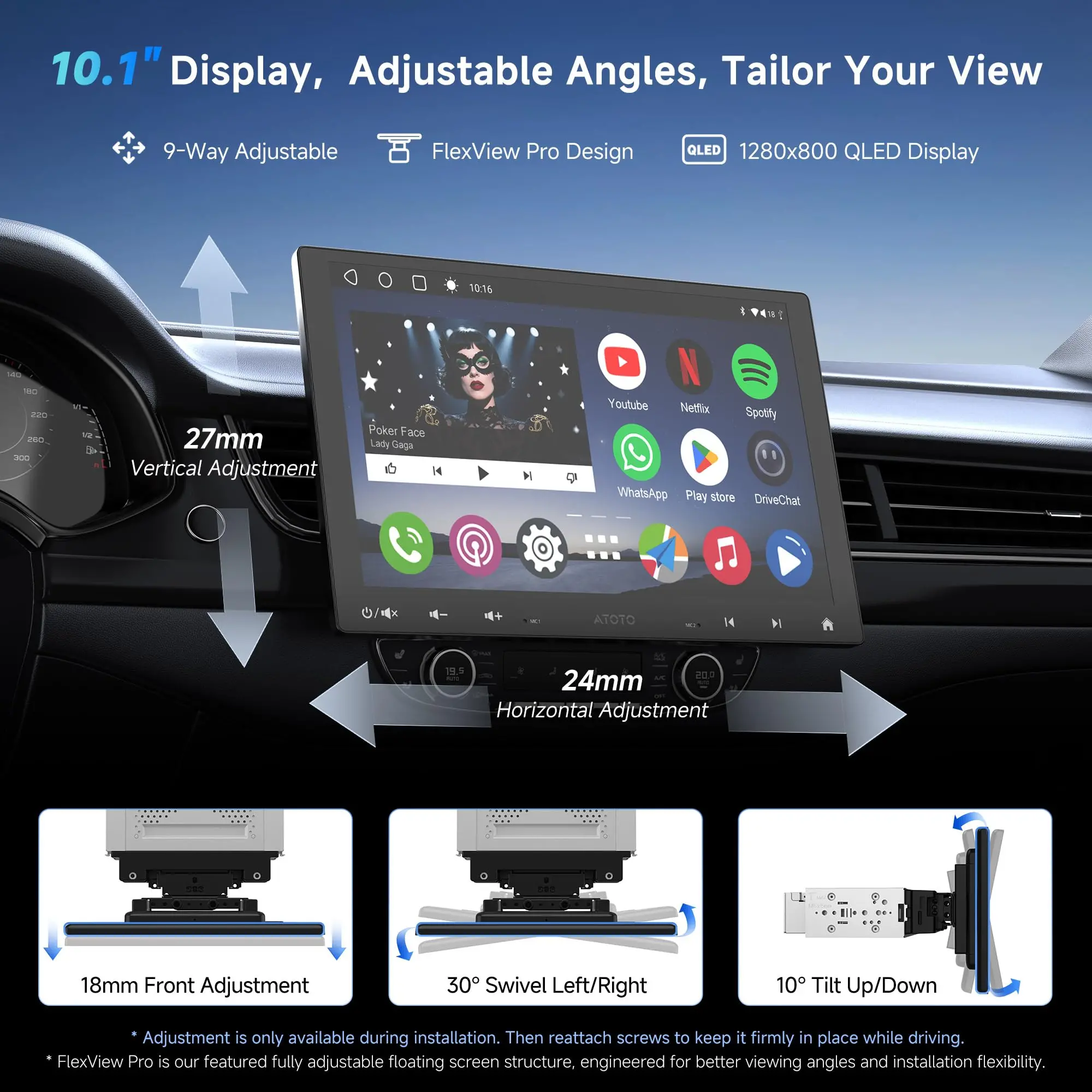
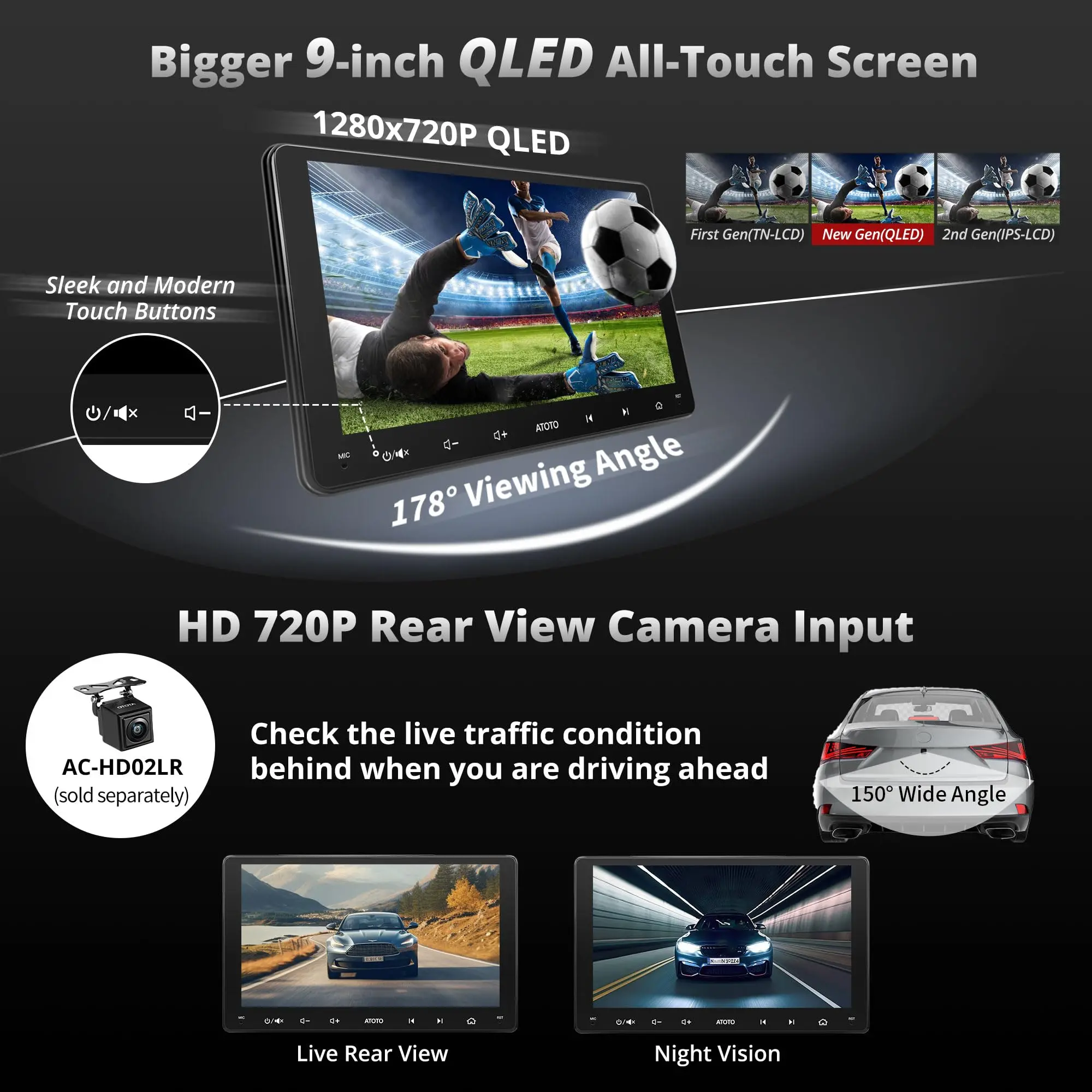
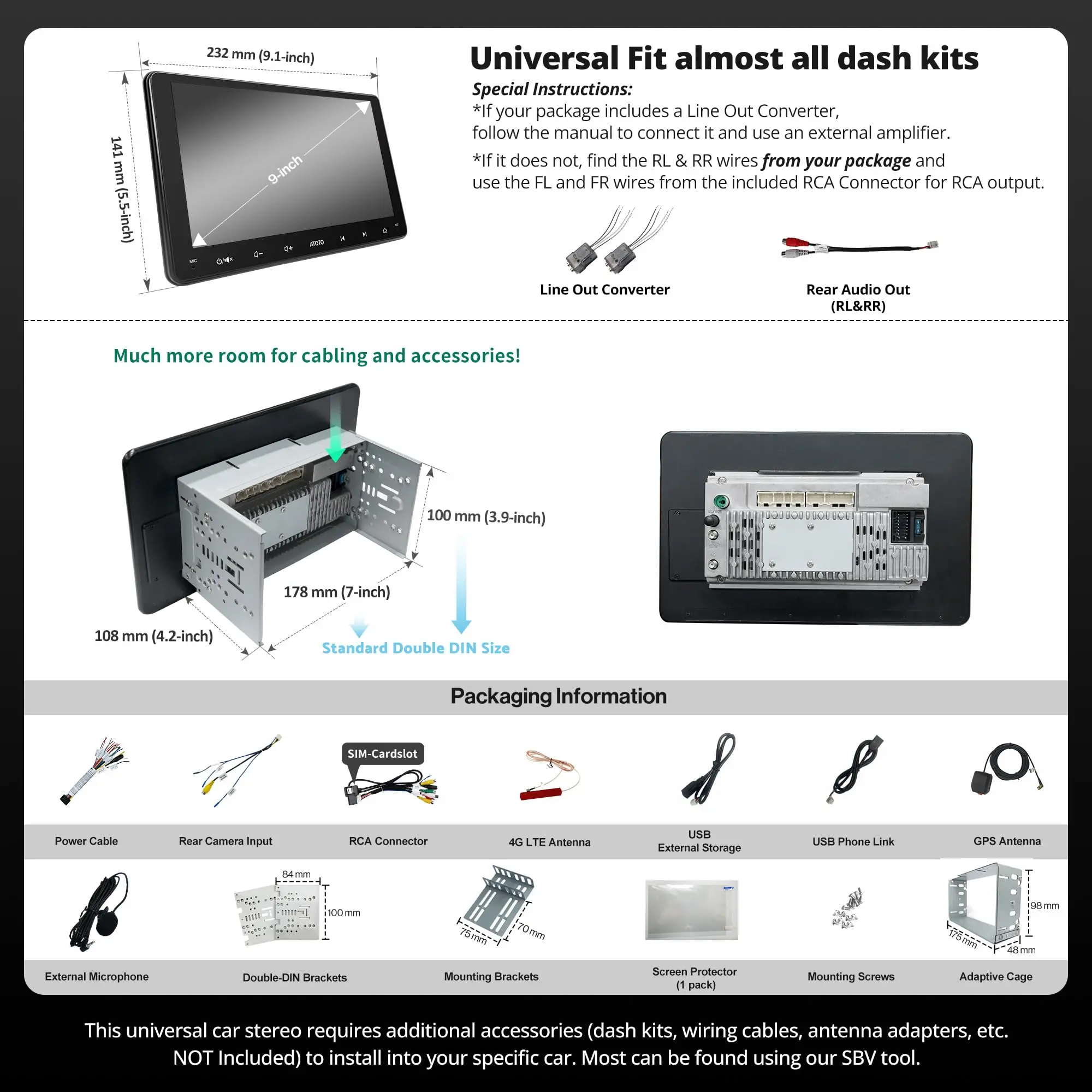
The 9-inch screen is big and wide with little to no risk of blocking air vents, knobs or keys. With YOFUNG vehicle-specific Installation Dash Kits (not included), you can get a more integrated and OEM Factory-style look after installation. Moreover, through SBV(Search By Vehicle) tool, hopefully, you can find most dash kits, wiring cables, and antenna adapters specific for your car. It is recommended to seek assistance from an experienced installer.

.
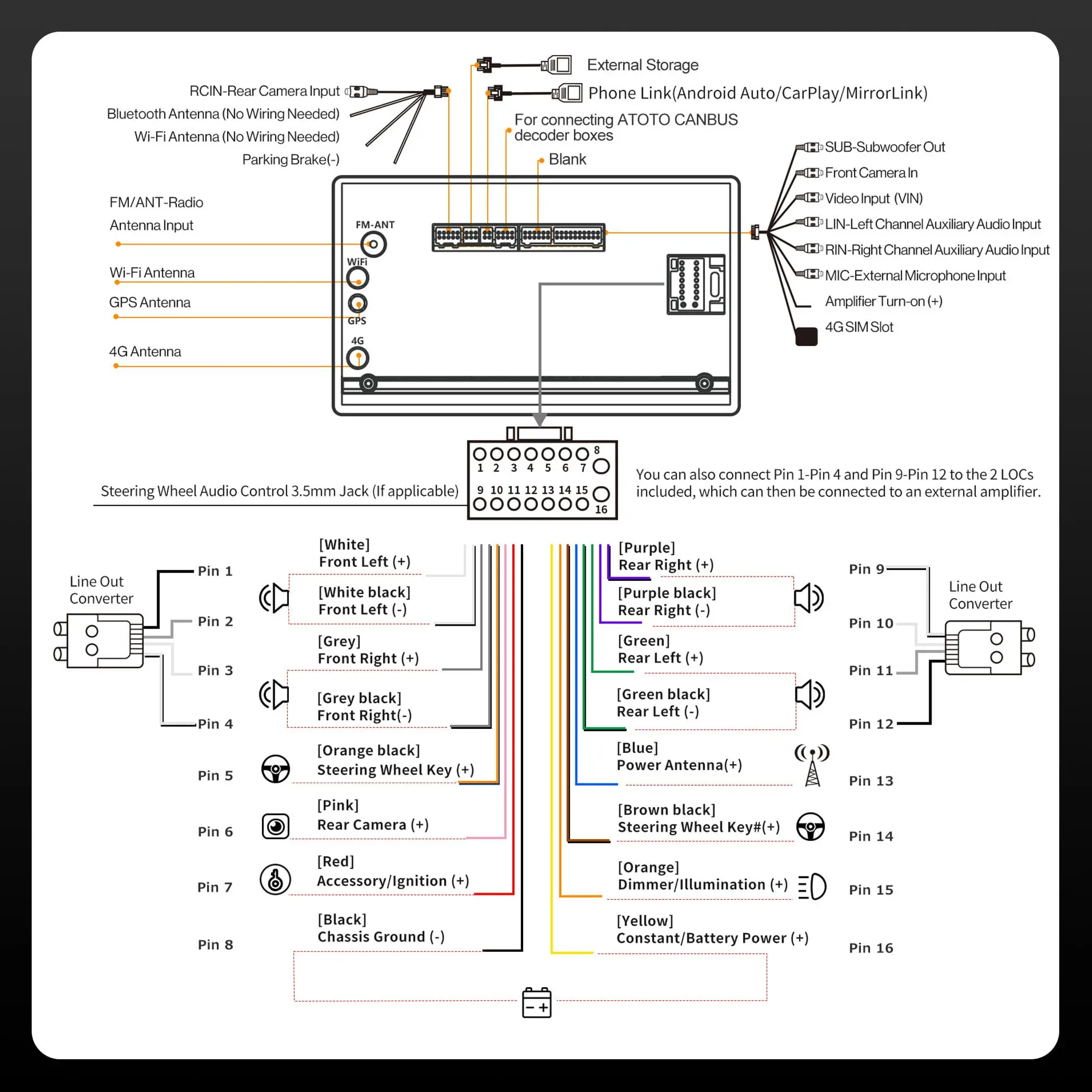
The A6 PL offers extensive connectivity options, allowing seamless integration with various devices and accessories such as CA-AEC01 and CA-AEC02 external amplifiers, CS-651DST and CS-651DC powerful speakers, CS-101SW robust subwoofer, AC-44P2 on dash 1080P DVR camera, AC-HAV50 HDMI converter for screen projection, and AC-4450 BT OBD II, AC-UTP1 USB TPMS tire pressure monitor and even 3-party gamepads.

.
As A6 PL is a universal car stereo, extra accessories may be required to finish installation in a specific vehicle (not provided in the package). We proudly offer the SBV (Search By Vehicle) tool at our brand. Input your vehicle details and access a list of compatible accessories and installation parts. Hopefully, you can find dash kits, wiring cables, and antenna adapters tailored for your car. Furthermore, SBV highlights our accessories compatible with your chosen car stereo.

.
We are committed to delivering car stereo systems by providing regular firmware updates every few months. These updates not only address bugs in the system but also offer new features in the future. Enjoy a 12-month product care plan included. For an additional 6-month product care extension, please inquire about this, which allows us to retrieve the initial order details for assistance.

Original: $280.90
-70%$280.90
$84.27Product Information
Product Information
Shipping & Returns
Shipping & Returns
Description
Online/Offline Maps
With online maps, you can enjoy real-time traffic announcements during rush hours and choose the route to save commute time. In the area where cellular data is hard to access, our robust built-in GPS chip enables offline navigation using downloaded maps.
Real-time GPS Tracking with TrackHU APP
Track your car effortlessly with the TrackHU app on A6 PL. Whether your car is borrowed, or out for deliveries, TrackHU makes the real-time updates when GPS and network are enabled. Plus, you can delete your tracking data or deactivate your account anytime—you're in complete manage.
Built-in Amplifier & 36 Band EQ DSP
With a powerful Digital Signal Processor(DSP), which takes the audio experience in the car to a whole new level by offering features like Time Alignment, and 36-Band EQ, Adjustable Crossover. Plus, Speed Compensated Volume manage(SCVC) counteracts external noise.
Dual Zone Video Out
The A6 PL Android Double Din Car Stereo's Dual Zone Video Out feature allows independent video playback on multiple screens, so the driver can navigate with A6 PL while passengers enjoy entertainment. Its USB interface supports up to 2TB storage, perfect for long trips.
.
With a screen lock feature, whenever your car stereo is not within your manage, such as during valet parking or when your car is operated by others, your online profiles stay protected. But what sets A6 PL apart is its innovative 'Unlock with BT' function. The moment your phone's BT pairs with the A6 PL, the screen unlocks automatically. The initiative to lock or unlock A6 PL is in your steps - just walk in or out of the BT range.
.
Accelerating the boot time of an Android system from 25 seconds to a mere 2 seconds is challenging. However, it's essential to preserve the car's battery life and ensuring quick startup upon every ignition. This feature has been rigorously evaluated in our products (A6 & S8) to demonstrate its reliability, consistently showing positive results. The internal clock will keep track of time and A6 PF automatically shuts off if the car remains parked after 7 days to save car battery.
.
The 9-inch screen is big and wide with little to no risk of blocking air vents, knobs or keys. With YOFUNG vehicle-specific Installation Dash Kits (not included), you can get a more integrated and OEM Factory-style look after installation. Moreover, through SBV(Search By Vehicle) tool, hopefully, you can find most dash kits, wiring cables, and antenna adapters specific for your car. It is recommended to seek assistance from an experienced installer.
.
The A6 PL offers extensive connectivity options, allowing seamless integration with various devices and accessories such as CA-AEC01 and CA-AEC02 external amplifiers, CS-651DST and CS-651DC powerful speakers, CS-101SW robust subwoofer, AC-44P2 on dash 1080P DVR camera, AC-HAV50 HDMI converter for screen projection, and AC-4450 BT OBD II, AC-UTP1 USB TPMS tire pressure monitor and even 3-party gamepads.
.
As A6 PL is a universal car stereo, extra accessories may be required to finish installation in a specific vehicle (not provided in the package). We proudly offer the SBV (Search By Vehicle) tool at our brand. Input your vehicle details and access a list of compatible accessories and installation parts. Hopefully, you can find dash kits, wiring cables, and antenna adapters tailored for your car. Furthermore, SBV highlights our accessories compatible with your chosen car stereo.
.
We are committed to delivering car stereo systems by providing regular firmware updates every few months. These updates not only address bugs in the system but also offer new features in the future. Enjoy a 12-month product care plan included. For an additional 6-month product care extension, please inquire about this, which allows us to retrieve the initial order details for assistance.